Desktop Pets
Indie game targeted as a learning assistant for children
Software Used: Unity Game Engine, C# Programming Language, Adobe Photoshop, Blender




This is an ongoing project. This page is current as of April. 30/2026
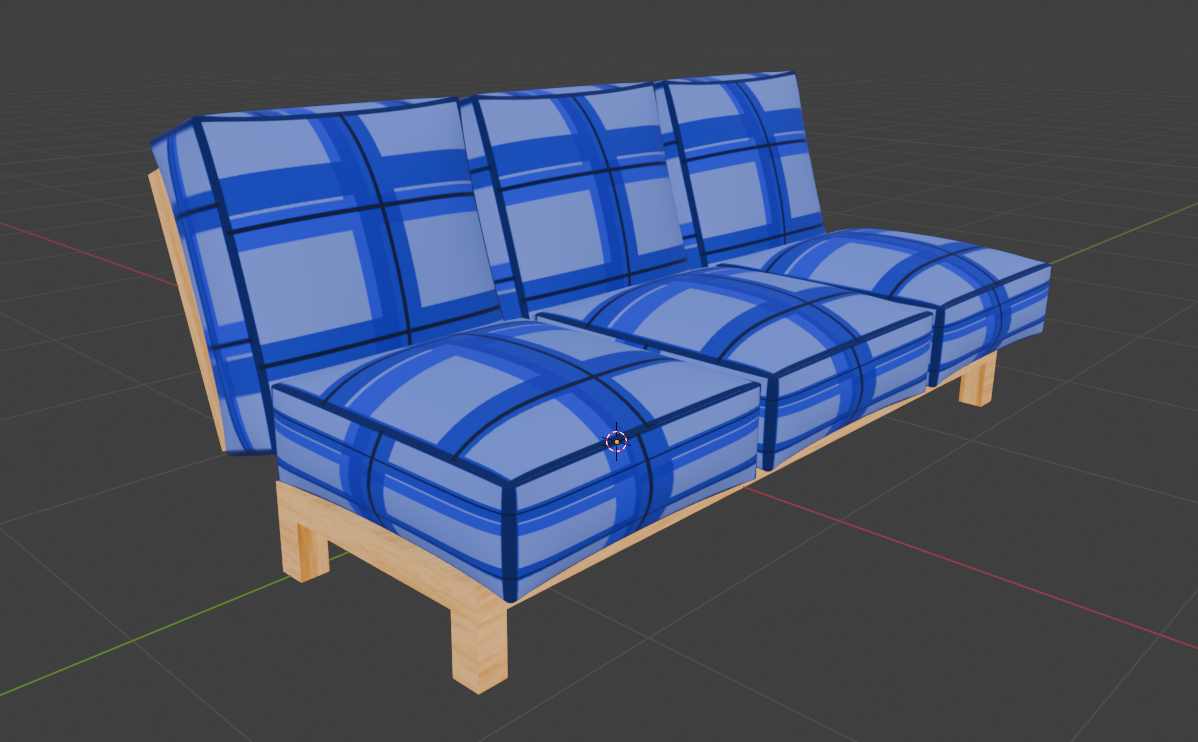
Couch Created in Blender, textured in Photoshop
Desktop Pets is an indie game project that incentivizes learning in elementary school aged children using satisfying gameplay. The project uses AI to help track a students learning and act as a learning companion. As well as fun interactive gameplay as a break from learning.
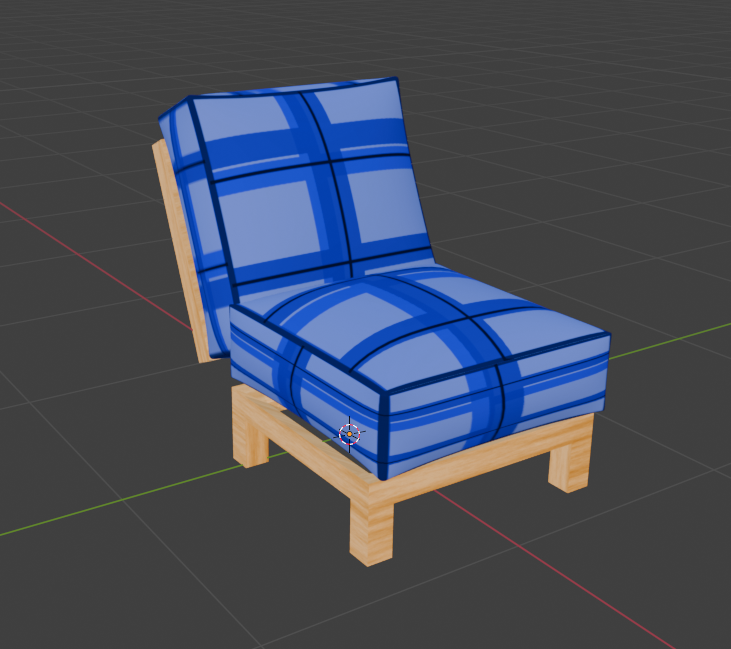
Chair Created in Blender, textured in Photoshop
My Role On Desktop Pets
My role on Desktop Pets is part of the game design team. I work on creating a satisfying, interactive gameplay experience that lets the player take a fun break from learning to take care of their digital pet.
My Contributions
Art Contributions
When I was first brought onto the project, the game needed some art assets. So I got to work creating furniture to populate the apartment space. However, because I only had access to Autodesk Maya through my college student account, I had to learn a new 3D modeling program, Blender.
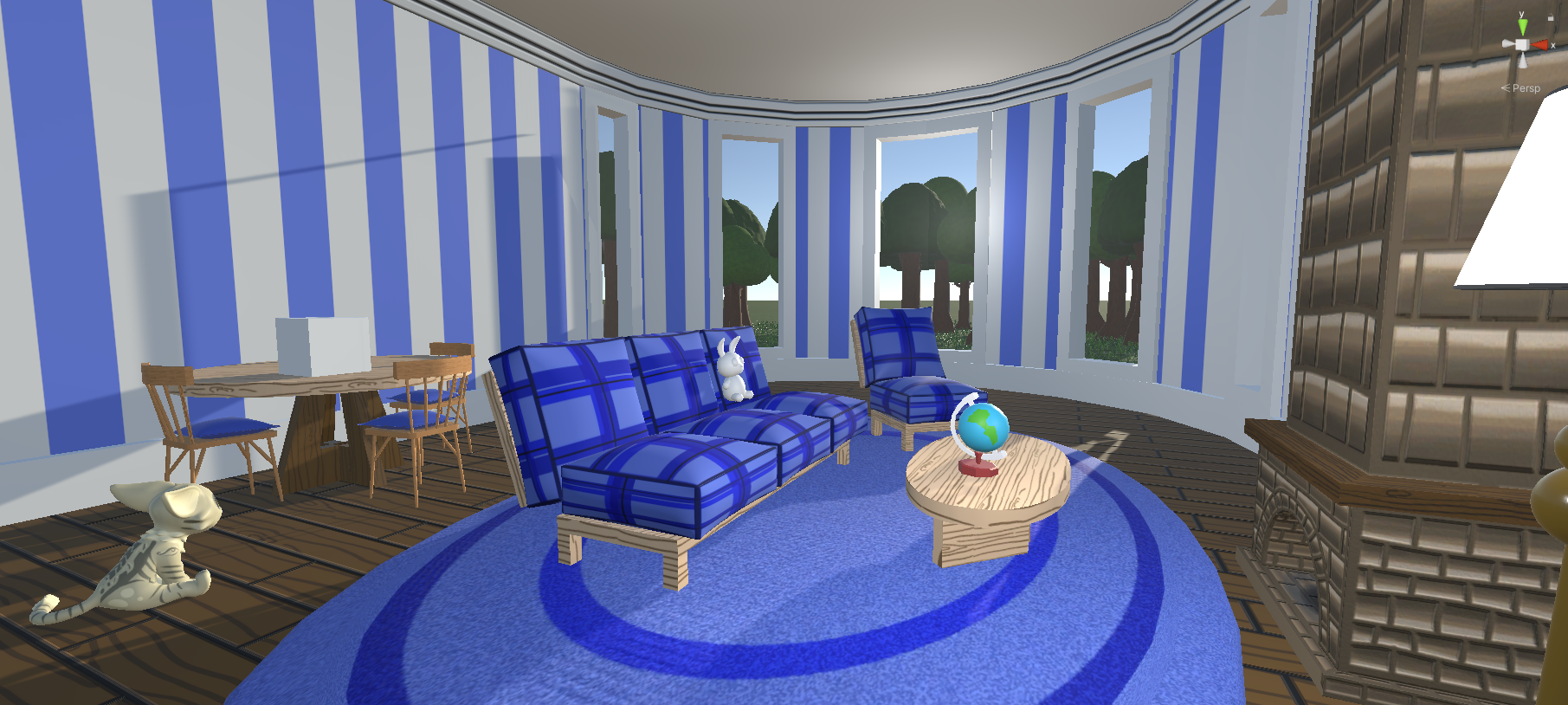
The images shown below showcase all of the art contributions I have made to the project so far (as of April. 30/2026). All the 3D models are created in Blender, and all textures are drawn using Adobe Photoshop.
Level Art Screenshots
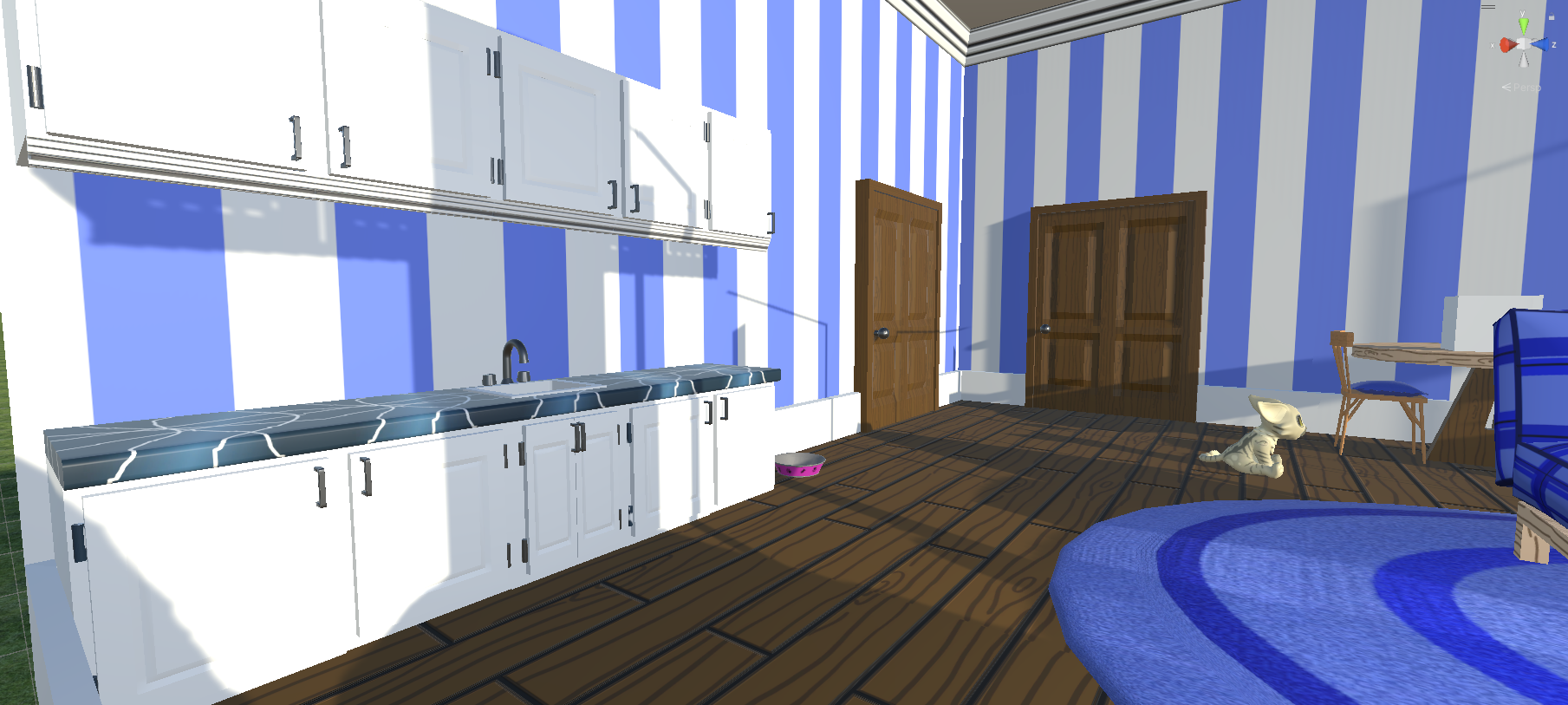
Kitchen Area
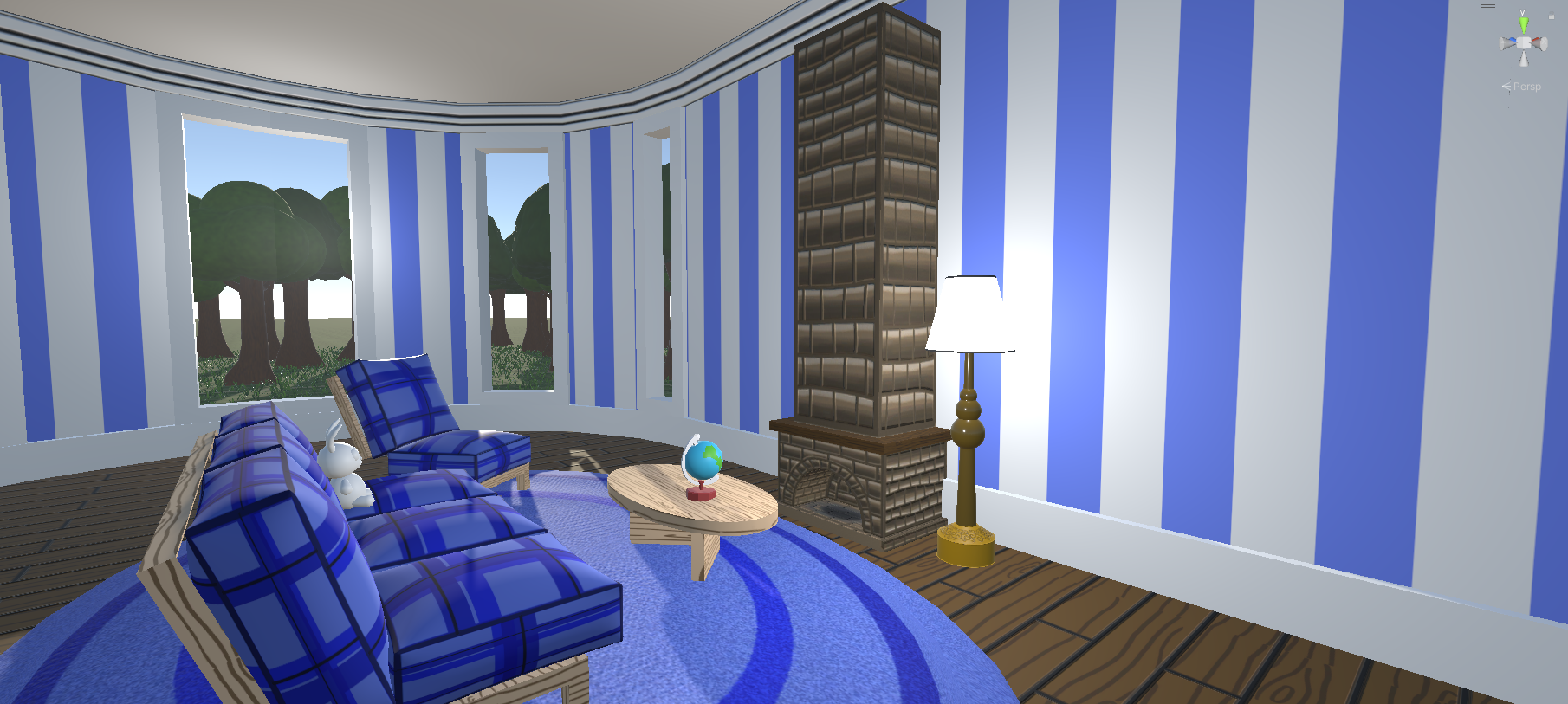
Sitting Area 2
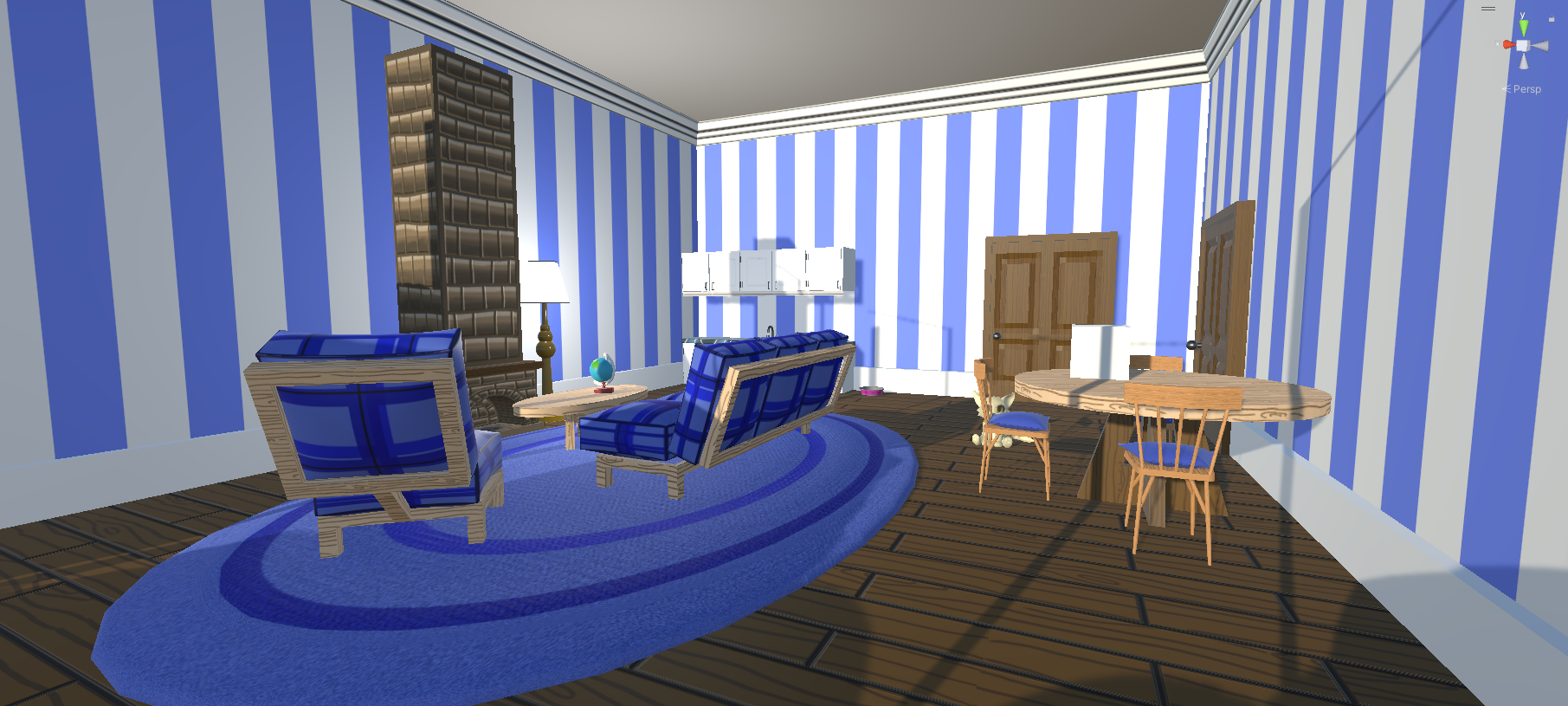
Sitting/Dining Area
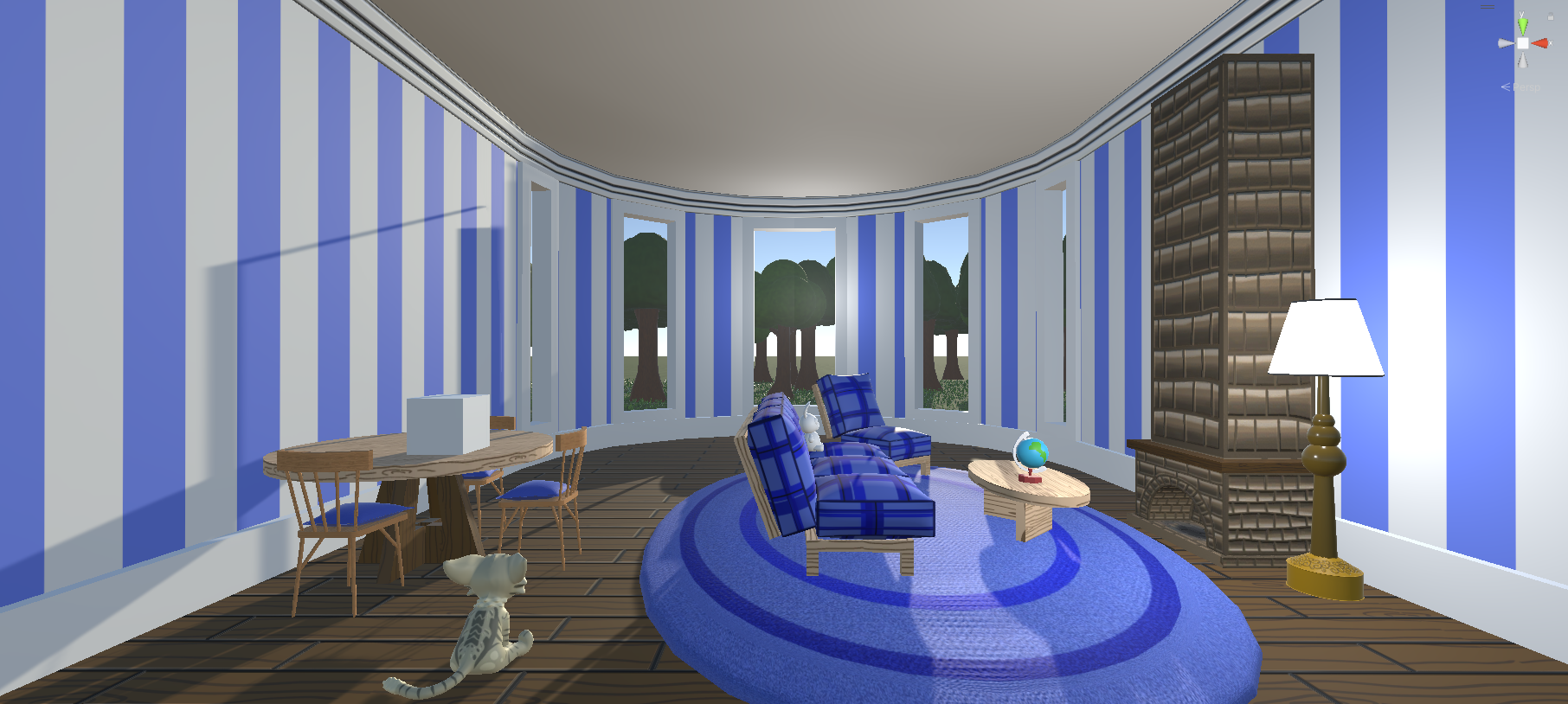
General Level
A quick note about what I DID NOT create in these images: The globe and the stuffed animal shown in the seating area are placeholder models for placeable objects made by another member of the team. Another team member also created the cat shown in a couple of screenshots. The default cube in the above screenshots is a placeholder for a food item to feed the pet with.
Programming Contributions
Finite State Machine
After the environment was created, I then moved on to some programming contributions to the project. The first contribution I made in this area was expanding on the pets' behaviour by implementing a finite state machine.
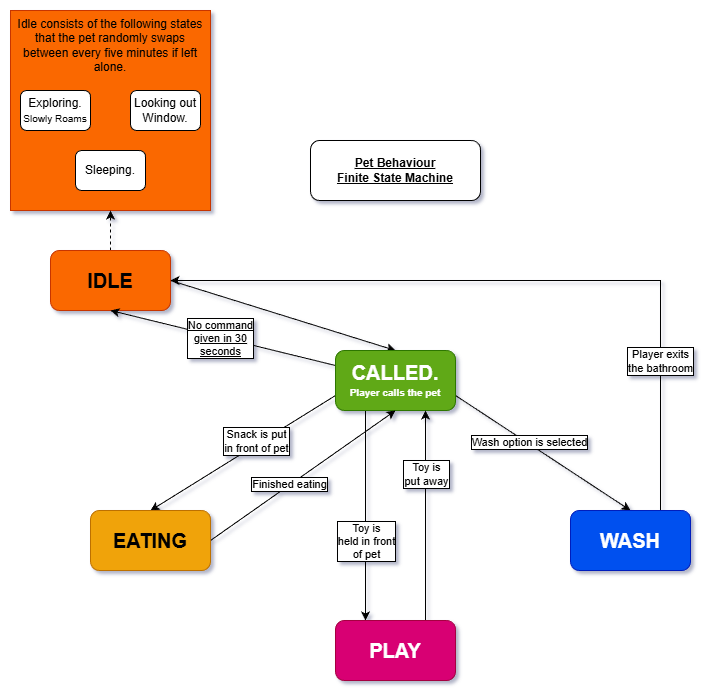
State Machine Diagram provided by Lead Game Designer - Joshua Pritchett
When I joined the project, the pet's behavior simply included the pet wandering around the room until it was called. Once the pet was called, he simply came to the camera for around 30 seconds, then continued to wander. I was tasked with adding more behavior to the pet in its idle state.
Currently, the Idle and Eating states of the state machine are complete.
The Idle State:
When in Idle, the pet will wander the room before becoming tired and choosing one of several predetermined locations to sleep on. During this state, the pet will also get thirsty and move to a water bowl to drink. However, this behavior may be moved into the Eating state as part of managing the pet's needs.
The Called State:
When the pet is called, it moves into the Called state. This now lowers the camera to center the pet in view and rotates the pet to face the camera. Currently, putting a food item in front of the pet in this state will trigger the Eating state. The pet will rotate towards the food item and consume it, refilling its hunger bar and returning it to the Idle state. In the future, this Called state will allow the player to pet and play with the pet in addition to feeding them.
Script Screenshots
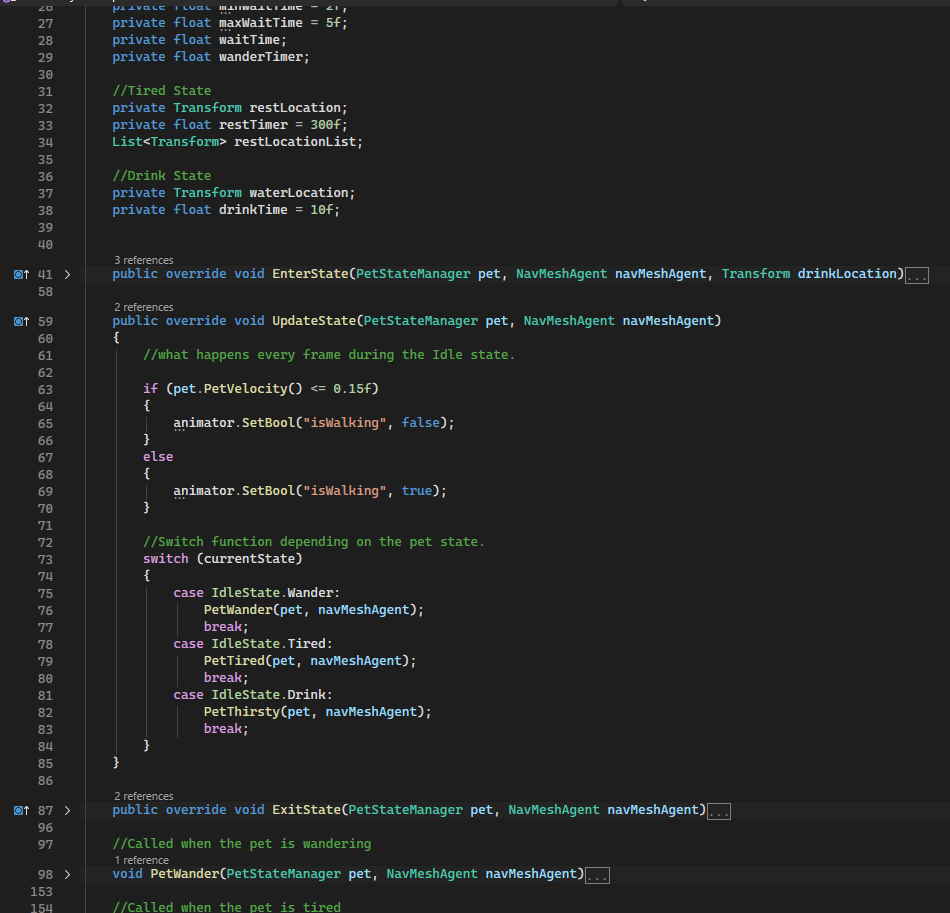
Idle State Script
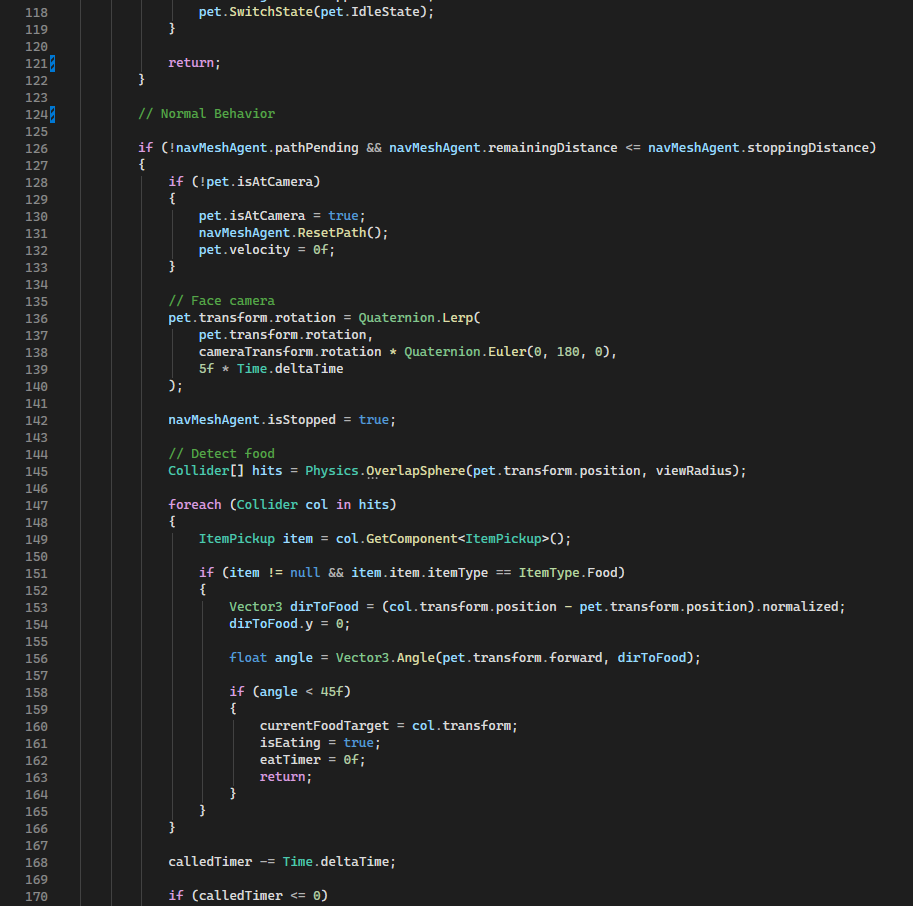
Called State Script
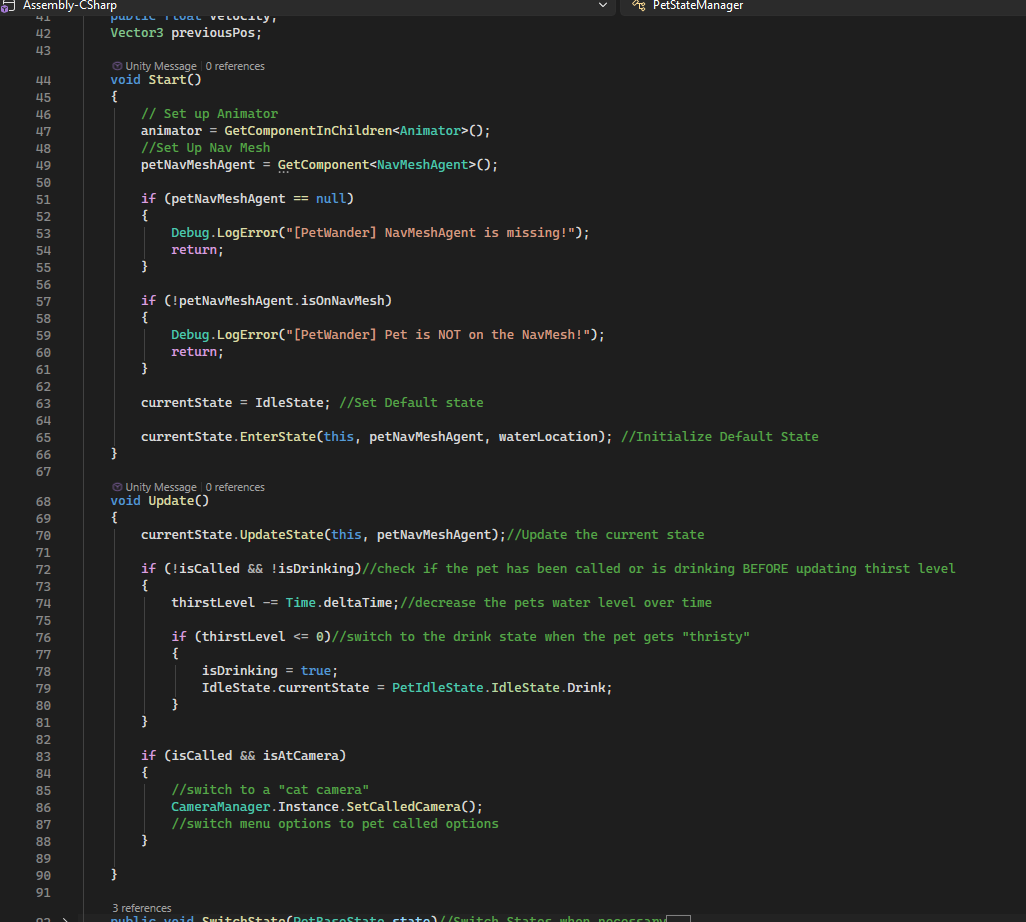
State Manager Script
Inventory System
To implement the feeding mechanic as listed above, some changes to the game's existing inventory system were necessary. The inventory system originally allowed the player to pick up items, which would then be added to their inventory. The player could then select those items and push a "drop" button, which would spawn the object in front of the camera and allow it to drop to the floor. To feed the pet, I changed this inventory system to remove the "drop" button instead and allow the player to click and drag the items out of their inventory and place them anywhere in the scene.
This necessary change also sets the groundwork for making the apartment completely customizable later in development.
Inventory System/Feeding Demo
Camera System
When I joined the project, the game had a static camera in which you could see most of the room and watch the pet roam around the apartment.
To improve the player experience, I was tasked with implementing a camera system to keep the player's view on the pet and also allow them to look around the room as they pleased. To accomplish this, I used Unity's Cinemachine package.
To start, I set up a simple camera that remains in one position but adjusts its rotation to keep the pet centered in view at all times. This makes sure the player never loses sight of the pet.
I then added a second camera, which focuses on the center of the room but allows the player to change its position using the WASD keys. This lets the player place the camera almost anywhere they want inside the room. When the player switches camera modes, the camera will keep this new position and return to following the pet around the room.
Finally, I added a third camera, much closer to the floor, which is always centered up close to the pet. The game now switches to this camera when the player calls the pet to them. Allowing them to interact with them in the called state.
Unity's Cinemachine package allowed me to set up this camera system easily, only requiring some simple scripting to change between the different cameras. While drastically improving the player experience from the static camera.